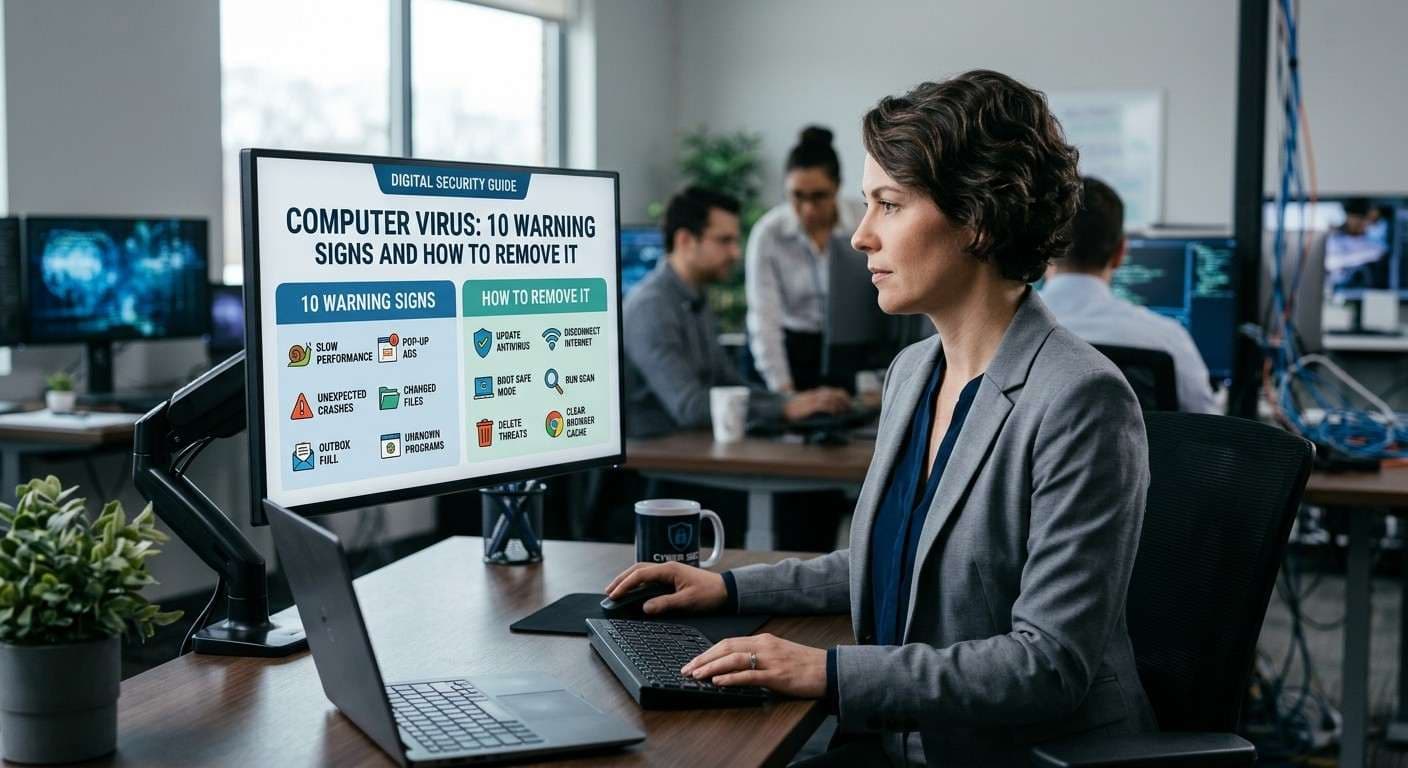
Computer Virus: 10 Warning Signs and How to Remove It
A computer virus can affect your computer's performance, compromise personal information, damage files, and create security risks. Common warning signs include slow performance, unexpected pop-ups, browser redirects, frequent crashes, unfamiliar programs, and disabled security software.
However, these symptoms do not always mean your computer has a virus. Hardware problems, outdated software, and unwanted applications can cause similar issues. A trusted security scan can help determine whether malware is responsible.
If you suspect a computer virus, understanding the warning signs and taking the right precautions can help protect your files and accounts. Quick Fix Computer Services provides computer diagnostics and virus removal services in Mountain View, California, to help identify and address computer security issues.
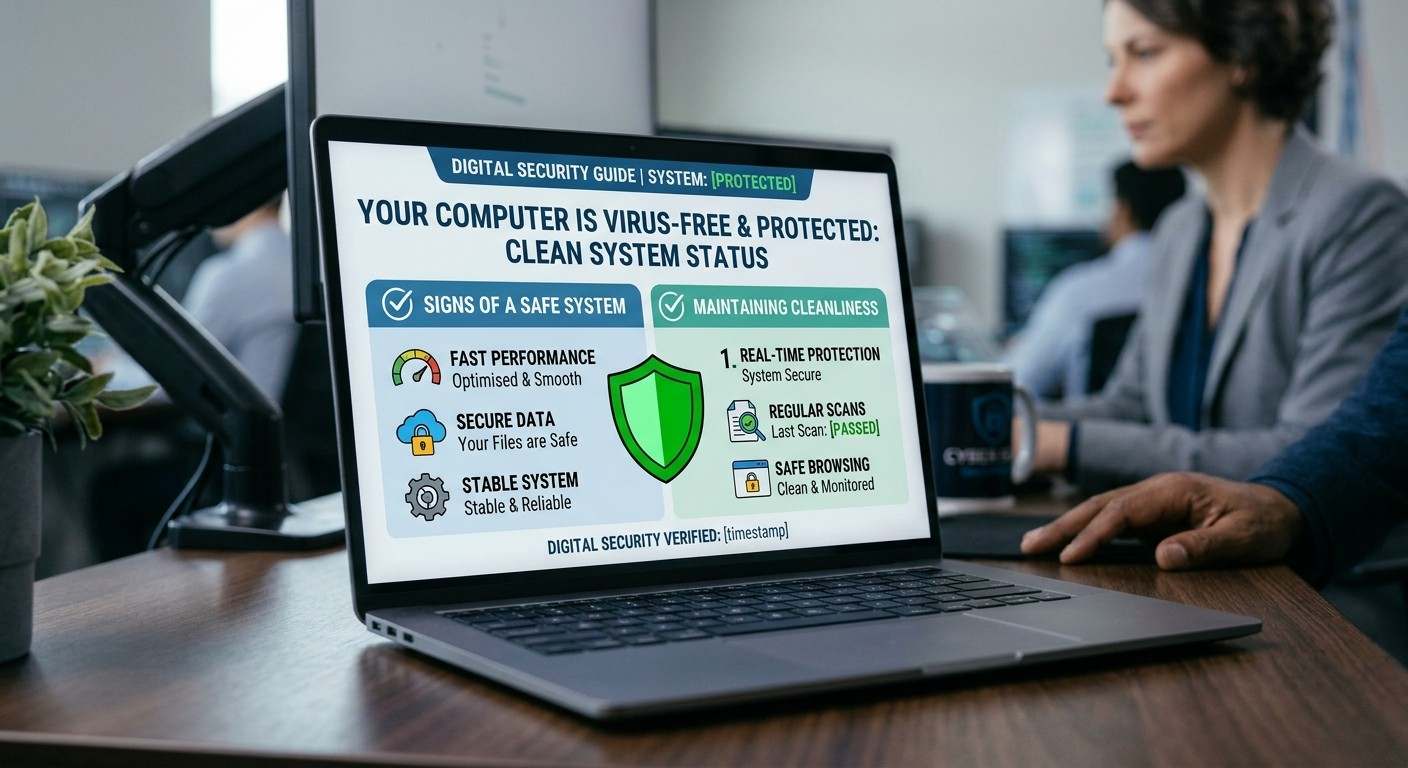
What Is a Computer Virus?
A computer virus is a type of malicious software that can attach itself to files or programs and spread when infected content is executed or shared. The term is also commonly used to describe other forms of malware, including spyware, ransomware, trojans, and adware.
Depending on the type of infection, malicious software may slow down your computer, display unwanted advertisements, steal sensitive information, or prevent you from accessing important files.
Recognizing potential symptoms early can help you investigate the problem before it causes further disruption.
10 Signs Your Computer May Have a Virus
1. Your Computer Is Running Slowly
A sudden decline in computer performance can be a warning sign of malware. Programs may take longer to open, startup may become sluggish, and everyday tasks may feel unusually slow.
Malware can consume processing power, memory, and network resources in the background. However, limited storage, aging hardware, and too many startup applications can cause similar symptoms.
What to do: Check available storage and running applications, then scan your system with trusted security software. If your computer remains slow, consider a professional diagnostic.
2. You See Unexpected Pop-Ups
Frequent advertisements, fake security alerts, and suspicious browser notifications may indicate adware or potentially unwanted software.
Be cautious of warnings claiming your computer is infected and urging you to call a phone number, install an unfamiliar application, or pay immediately for removal.
What to do: Avoid clicking suspicious alerts or downloading recommended software. Close the affected browser tab and run a security scan using a trusted tool.
3. Your Browser Redirects You to Unknown Websites
If your browser opens unfamiliar websites, changes your homepage, or redirects searches without your permission, unwanted extensions or malware may be involved.
These redirects can expose you to fraudulent websites designed to steal login credentials or personal information.
What to do: Review your browser extensions and search settings. Remove unfamiliar extensions only after checking them, and scan your computer for unwanted software.
4. Your Computer Frequently Freezes or Crashes
Repeated freezes, unexpected restarts, and application crashes may indicate a software or hardware issue. In some cases, malware interferes with normal system operations.
Other causes include overheating, faulty memory, damaged system files, and failing storage.
What to do: Save important work, note when the crashes occur, and run a security scan. If the issue continues, seek technical assistance to identify the underlying cause.
5. Unfamiliar Programs Appear on Your Computer
Unexpected applications, browser toolbars, or extensions can be signs of unwanted software. Some programs arrive bundled with downloads or are installed through deceptive links.
Not every unfamiliar application is malicious, so avoid deleting essential system components based on their names alone.
What to do: Review recently installed programs and extensions. Investigate unfamiliar software and use reputable security tools to check for potentially unwanted applications.
6. Files Are Missing or Cannot Be Opened
Malware can delete, modify, steal, or encrypt files. Ransomware, for example, may make documents inaccessible and demand payment for their recovery.
Missing files can also result from accidental deletion, storage failure, or synchronization problems.
What to do: If you suspect ransomware, disconnect the affected computer from the network when safe to do so. Avoid connecting backup drives to a potentially infected device, and seek professional guidance before attempting recovery.
Quick Fix Computer Services also provides data recovery services, although recovery depends on the device's condition and the nature of the damage.
7. Your Antivirus or Security Settings Are Disabled
If your antivirus stops working, real-time protection turns off unexpectedly, or you cannot access security settings, investigate the cause.
Some malware attempts to disable security tools. Expired subscriptions, configuration changes, and software conflicts can also affect protection.
What to do: Check your security software through its official interface. If protection cannot be restored or settings repeatedly change, consider professional assistance.
8. Your Internet Activity Seems Unusual
Unexpected network activity, unexplained data usage, or unfamiliar connection alerts may indicate a security issue. Certain malware communicates with external servers or transfers information without your knowledge.
However, automatic updates, cloud backups, and legitimate applications can also use network resources in the background.
What to do: Review network usage and running applications, then run a security scan. If you suspect an active infection on a business computer, notify your IT support team promptly.
9. Your Accounts Show Unauthorized Activity
Emails you did not send, unfamiliar account sign-ins, and unexpected password changes can indicate compromised credentials.
A computer virus is one possible explanation, but phishing, stolen passwords, and compromised login sessions can cause the same problem.
What to do: Use a separate, trusted device to change affected passwords, enable multifactor authentication, and review account activity. If a work account is involved, notify your organization's IT team.
10. Your Computer Behaves Unusually
Unexpected settings changes, applications opening without your input, or repeated security warnings may indicate unwanted software or another system problem.
Remote-control applications, scheduled tasks, faulty peripherals, and software glitches can also cause unusual behavior.
What to do: Record the symptoms and run a trusted security scan. If multiple warning signs occur together, arrange a professional diagnostic rather than assuming one symptom confirms a virus.
How to Check Your Computer for a Virus
If you suspect a computer virus, follow these steps to investigate the problem safely.
Check your security software. Confirm that your antivirus or built-in operating system protection is enabled and updated.
Run a full security scan. Follow your security software's instructions to identify and quarantine detected threats.
Review unfamiliar applications. Check recent downloads and browser extensions for suspicious or unwanted software.
Protect your accounts. If you suspect stolen credentials, change passwords from a separate, trusted device and enable multifactor authentication.
Seek professional help when necessary. Repeated infections, disabled security tools, inaccessible files, or suspected ransomware may require specialist attention.
If you suspect active malware or ransomware, disconnect the affected computer from the network when appropriate. Avoid experimenting with unfamiliar removal tools, particularly if important data is at risk.
How to Prevent a Computer Virus
Preventive measures can reduce the risk of infection and help protect your personal and business information.
Keep your operating system, browser, and applications updated.
Use reputable security software and keep protection enabled.
Download programs from official and trusted sources.
Avoid suspicious email attachments, links, and fake security alerts.
Use unique passwords and multifactor authentication.
Back up important files regularly and maintain an isolated backup copy.
Review installed applications and browser extensions periodically.
For business devices, use appropriate access controls, endpoint protection, and security policies.
No single security tool can prevent every threat. Combining updated software, safe browsing habits, reliable backups, and suitable security controls offers stronger protection.
Computer Virus Removal in Mountain View, California
If your computer is running slowly, displaying suspicious pop-ups, redirecting your browser, or showing other potential signs of malware, a professional diagnostic can help identify the cause.
Quick Fix Computer Services offers virus and malware removal in Mountain View, CA, alongside computer repair, system troubleshooting, and other technical services. Our team can assess your computer's symptoms and recommend appropriate next steps.
We serve customers in Mountain View and surrounding Bay Area communities, including Palo Alto, Sunnyvale, Cupertino, San Jose, and Menlo Park.
Whether you are dealing with suspicious software, recurring security alerts, or unexplained computer behavior, identifying the underlying issue is the first step toward resolving it.
Need help with a potentially infected computer?
Call Quick Fix Computer Services at (650) 968-2400
Address: 1398 W El Camino Real E, Mountain View, CA 94040.
Frequently Asked Questions About Computer Viruses
What are the most common signs of a computer virus?
Common warning signs include slow performance, unexpected pop-ups, browser redirects, frequent crashes, unfamiliar applications, missing files, and disabled security software. These symptoms can have other causes, so a security scan is recommended.
How do I know if my computer has a virus?
Check for unusual changes in performance, browser behavior, installed programs, and security settings. Run a full scan with trusted security software. If symptoms persist or several warning signs occur together, seek professional diagnosis.
Can a computer virus go undetected?
Yes. Some malware operates in the background without obvious symptoms. Keeping security software updated, installing system updates, and monitoring account activity can help reduce risk.
How do I remove a computer virus?
Use trusted security software to scan and quarantine detected threats. If your security tools are disabled, the infection returns, or important files are affected, seek professional assistance.
Can a computer virus steal personal information?
Some malware can steal passwords, financial information, and other sensitive data. If you suspect an account has been compromised, change its password from a separate trusted device and enable multifactor authentication.
Can a slow computer mean it has a virus?
Yes, but slow performance alone does not confirm an infection. Insufficient storage, aging hardware, overheating, and background applications can also affect performance.
Where can I get computer virus removal in Mountain View, CA?
Quick Fix Computer Services provides virus and malware removal services in Mountain View, California. Visit the Mountain View service page or schedule a repair.
Protect Your Computer with Professional Help
A computer virus can affect performance, files, and personal information, but not every unusual computer problem is caused by malware. Recognizing warning signs, using trusted security software, and protecting your accounts can help you respond appropriately.
If your computer continues to behave unusually or you suspect an infection, contact Quick Fix Computer Services in Mountain View, California, for help assessing the problem and exploring virus removal options.
Need Help?
Our technicians are here to help with any tech issue. Free diagnostics on all repairs.
Schedule a Repair