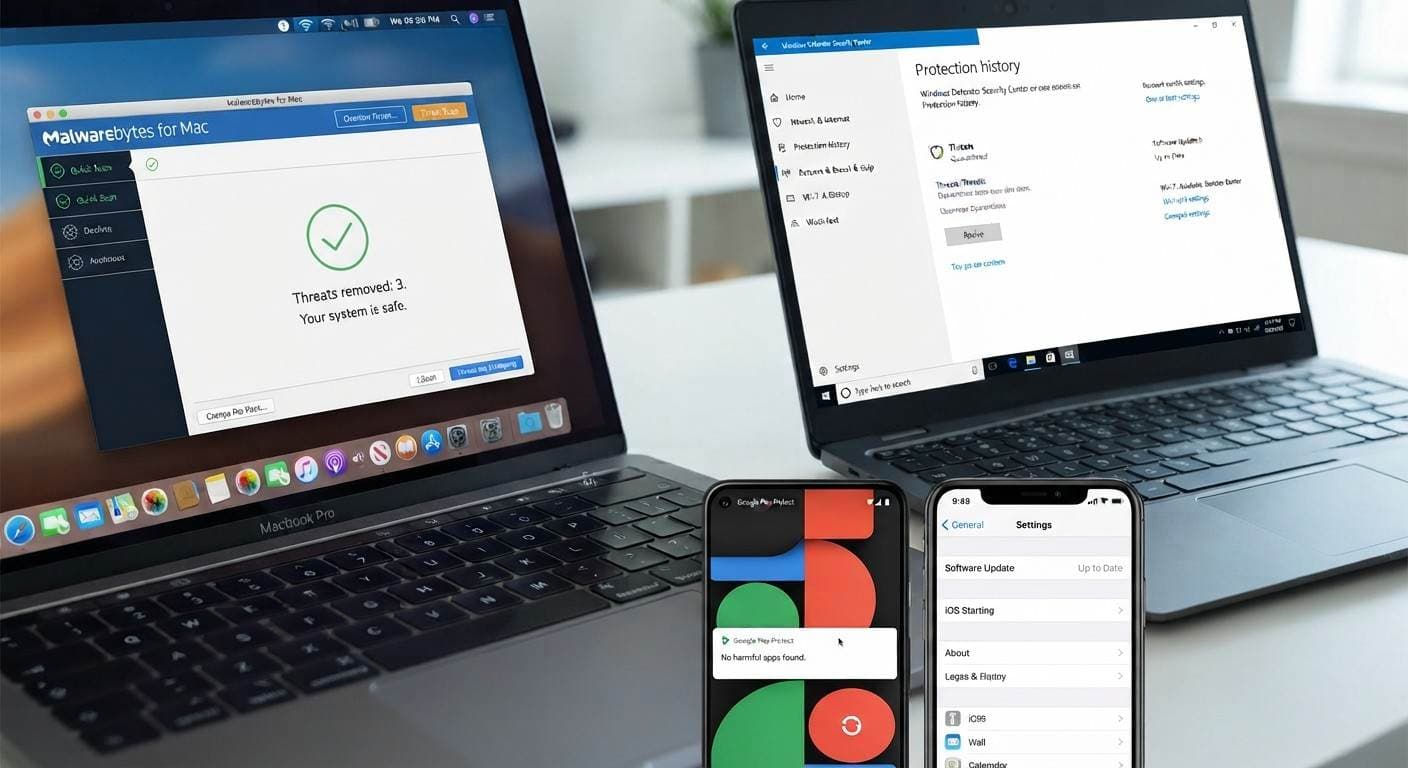
How to Remove Malware: A Step-by-Step Guide for Beginners
Malware can affect almost any device, from a Windows PC or Mac to an Android phone or iPhone. It may cause pop-ups, browser redirects, slow performance, crashes, unknown programs, or other unusual behavior. In some cases, malware can also put personal information and online accounts at risk.
If you are wondering how to remove malware, the right approach depends on the device and the type of infection. A security scan can often identify and remove common threats, but persistent infections may require additional troubleshooting or professional malware removal.
This guide explains how to remove malware from a computer, Mac, Android phone, iPhone, and Chrome browser, along with steps you can take to prevent another infection.
Understanding Malware
What Is Malware?
Malware is short for malicious software. It is designed to disrupt a device, damage files, collect information, display unwanted advertisements, or gain unauthorized access to a system.
Malware is a broad category that includes viruses, spyware, ransomware, adware, trojans, and other unwanted programs.
Not every slow computer or unexpected pop-up means your device has malware. Hardware problems, outdated software, browser issues, and other programs can cause similar symptoms. Microsoft notes that unusual slowdowns, crashes, disabled security tools, unexpected pop-ups, and browser changes can be signs of malware, but they can also have other causes.
Common Types of Malware
Different types of malware behave differently:
Viruses: Malicious programs that can spread between files or systems and interfere with normal operation.
Spyware: Software that may monitor activity or collect information without the user's knowledge.
Ransomware: Malware that can prevent access to files or systems, often by encrypting data.
Adware: Unwanted software that can generate excessive advertisements, pop-ups, or browser redirects.
Trojans: Malicious programs that may appear to be legitimate software but perform harmful actions after installation.
Browser hijackers: Unwanted software that can change browser settings, search engines, homepages, or redirect users to unfamiliar websites.
Signs of Malware Infection
Knowing the warning signs can help you determine whether your device needs a malware scan.
Symptoms on Computers
Common warning signs include:
Your computer suddenly becomes much slower.
Pop-ups appear when you are not browsing.
Your browser repeatedly redirects to unfamiliar websites.
Programs crash or stop responding.
Unknown applications appear on your computer.
Your homepage or search engine changes without permission.
Security software stops working or becomes disabled.
Files disappear, become corrupted, or cannot be opened.
Your computer behaves differently without an obvious reason.
Google lists persistent pop-ups, unwanted Chrome extensions, browser redirects, unexpected homepage changes, slow performance, and disabled antivirus software among possible signs of unsafe software.
Symptoms on Mobile Devices
Malware and unwanted software can also affect phones. Watch for:
Unwanted pop-ups or advertisements
Unknown apps
Battery draining unusually quickly
Unexpected changes to browser settings
Unexplained data usage
Apps crashing frequently
Device performance becoming unusually slow
Messages or activity appearing that you did not initiate
However, these symptoms do not automatically prove that your phone has malware. Battery age, storage limitations, outdated software, and poorly functioning apps can cause similar problems.
How to Remove Malware from PC
If you suspect malware on a Windows PC, start with the built-in security tools before downloading unfamiliar cleanup software.
1. Disconnect From the Internet if Necessary
If you believe your computer has an active infection, especially ransomware or suspicious network activity, disconnecting from Wi-Fi or Ethernet can help limit communication between the infected computer and external systems.
For a suspected ransomware infection, avoid making unnecessary changes to the affected computer and consider getting professional assistance before attempting complicated recovery steps.
2. Run a Full Malware Scan
Windows includes security tools that can scan your computer for malicious software.
Open Windows Security, select Virus & threat protection, and run a scan. A full scan can take longer than a quick scan because it checks more files and locations.
Microsoft recommends using Windows Security or another trusted antivirus solution when dealing with suspected malware.
3. Remove or Quarantine Detected Threats
If the security software identifies malware, follow its instructions to quarantine or remove the detected files.
Do not manually delete system files simply because their names look unfamiliar. Some legitimate Windows files and processes can have names that seem suspicious.
4. Remove Suspicious Applications
If you recently installed an unfamiliar program and problems started afterward, check your installed applications.
In Windows 11, you can go to:
Start → Settings → Apps → Installed apps
Find the application and select Uninstall. Microsoft also provides Control Panel options for removing programs.
5. Check Your Browser Extensions
Malware does not always appear as a traditional computer program. A malicious or unwanted browser extension can cause redirects, advertisements, or changes to your search settings.
Remove extensions that you do not recognize or no longer need.
6. Update Windows and Your Security Software
After removing malware, install available operating system and security updates. Keeping software updated can help address known security vulnerabilities.
Can PC Cleaning Software Remove Malware?
Some PC cleaning software can help remove temporary files, unnecessary data, or unwanted applications, but a general PC cleaner should not be treated as a replacement for dedicated antivirus or malware protection.
For malware removal, use a reputable security solution designed to detect malicious software.
How to Remove Malware from Mac
Mac computers can also be affected by malware, adware, browser hijackers, and other unwanted software.
Use Built-In macOS Security Features
Start by updating macOS and reviewing recently installed applications.
If you recognize a suspicious application, remove it using the normal macOS application removal process. Also check browser extensions and settings for anything you did not intentionally install.
Google recommends manually removing unsafe software from Macs and using trusted security guidance when necessary.
Use a Trusted Malware Scanner
If suspicious behavior continues, a reputable malware scanner can provide another layer of detection.
Avoid downloading security software from pop-ups claiming that your Mac has dozens of infections. Fake security warnings are commonly used to trick users into installing unwanted software or providing payment information.
When Mac Malware Keeps Returning
If the same pop-ups, redirects, or suspicious applications return after removal, the problem may involve more than one file or setting.
At that point, a professional malware scan can help identify what is causing the recurring problem.
How to Remove Malware from Android
Android devices can encounter malicious apps, unwanted advertisements, suspicious permissions, and browser-related threats.
Step-by-Step: Removing Malware from an Android Phone
Start with these steps:
Review recently installed apps. Remove applications you do not recognize or no longer trust.
Check app permissions. Be cautious if an unfamiliar application has access to sensitive information or device functions it does not reasonably need.
Run a security scan. Use a reputable mobile security solution.
Update Android. Install available operating system and security updates.
Check your browser. Remove suspicious notifications, extensions, or settings if applicable.
Restart the phone. This can help after unwanted software has been removed.
Monitor the device. Check whether the original symptoms continue.
If an unwanted app cannot be removed normally or keeps returning, professional troubleshooting may be necessary.
Using Security Apps for Malware Protection
A trusted mobile security application can help detect suspicious software, but be careful when choosing one.
Do not install an app simply because a pop-up says your Android phone is infected. Instead, download security software from a trusted source and verify the publisher.
How to Remove Malware from iPhone
The term iPhone malware can refer to several different security issues, including malicious websites, unwanted profiles, compromised accounts, or rare cases of malicious software.
How to Identify Possible iPhone Security Problems
Watch for:
Unexpected pop-ups in Safari
Unwanted calendar events
Unknown configuration profiles
Suspicious apps
Unusual account activity
Browser redirects
Repeated security warnings from unfamiliar websites
A browser pop-up claiming that your iPhone has a virus does not necessarily mean your phone is infected. Treat unexpected security alerts from websites with caution.
Steps to Remove Malware from iPhone
Start with these steps:
Update iOS to the latest available version.
Delete unfamiliar or suspicious apps.
Clear problematic browser data if you are experiencing persistent redirects.
Review installed profiles and device-management settings.
Change important account passwords if you believe an account may have been compromised.
Enable available security and account protections.
If the problem continues, back up important data and consider professional assistance or an appropriate device reset.
If you suspect that your Apple Account has been compromised, secure the account separately from troubleshooting the phone itself.
How to Remove Malware from Chrome
Chrome problems are often caused by unwanted extensions, notifications, browser settings, or software installed on the computer.
Identify Malicious Chrome Extensions
Open your Chrome extensions and review everything that is installed.
Remove extensions that:
You do not recognize
You did not intentionally install
Keep returning after removal
Change your homepage or search engine
Cause unexpected advertisements or redirects
Google specifically recommends removing Chrome extensions that you do not need, trust, or recognize.
Clear Browser Data and Reset Chrome Settings
If unwanted behavior continues, review Chrome's settings and reset them to their original defaults.
A browser reset can help address unwanted homepage changes, search-engine changes, and other persistent configuration problems. Google recommends resetting Chrome settings when unsafe software continues to affect the browser.
Remember that a browser reset does not necessarily remove the underlying malware from your computer. If the problem returns, scan the entire device.
How to Get Rid of Malware That Keeps Coming Back
Sometimes malware appears to be removed but the symptoms return.
This can happen when:
A malicious program remains on the computer.
A browser extension reinstalls itself.
Another unwanted application is responsible.
Browser settings were not completely restored.
The operating system or another application is outdated.
An online account has been compromised.
Multiple security problems are present.
If repeated scans do not resolve the issue, avoid installing multiple random malware-removal tools. Running several security programs simultaneously can also create conflicts.
Instead, identify the source of the problem and use a trusted security solution or professional diagnostic service.
Prevention and Malware Protection
Removing malware is only part of protecting your device. Good security habits can reduce the chance of another infection.
Keep Your Software Updated
Install operating system, browser, application, and security updates when they become available.
Updates frequently include security fixes, making them an important part of malware protection.
Download Software From Trusted Sources
Avoid downloading programs from unfamiliar websites, file-sharing pages, or suspicious advertisements.
Be particularly careful with:
Cracked software
Pirated applications
Unknown browser extensions
Fake antivirus programs
Suspicious email attachments
Unexpected download links
Be Careful With Email and Text Links
Do not open unexpected attachments or click suspicious links simply because a message appears urgent.
If a message claims to be from your bank, delivery company, employer, or another organization, visit the organization's official website directly rather than using an unfamiliar link in the message.
Use Strong Account Security
Malware protection should extend beyond the device itself. Use unique passwords and enable multi-factor authentication where available.
If you believe malware may have captured your credentials, change important passwords from a known-clean device.
Back Up Important Files
Maintain regular backups of important photos, documents, and business files.
A backup can be particularly important when dealing with ransomware or serious system infections.
When Should You Get Professional Malware Removal?
DIY malware removal can work for straightforward infections, but some problems are more difficult to diagnose.
Consider professional help if:
Malware keeps coming back after removal.
Your antivirus software has been disabled.
You cannot install or run security software.
Your browser repeatedly redirects.
Important files are encrypted or inaccessible.
You suspect spyware or unauthorized access.
Your computer remains unusually slow after a scan.
You are unsure whether a file or program is safe to remove.
Microsoft notes that malware can cause symptoms such as unusual slowdowns, crashes, disabled security tools, browser changes, and persistent pop-ups, while also pointing out that these symptoms can have other causes.
Professional Virus and Malware Removal in Mountain View, CA
If you are searching for malware removal near me in Mountain View, California, Quick Fix Computer Services provides professional virus and malware removal for computers and mobile devices.
Quick Fix Computer Services technicians can help identify and remove malware, spyware, ransomware, adware, and other unwanted software. The service also includes a deeper system scan to look for additional security threats.
Quick Fix Computer Services serves Windows and Mac laptops, desktops, Android phones, and iPhones. Its Mountain View repair shop is located at 1398 W El Camino Real E, Mountain View, CA 94040.
If your computer is suddenly slow, displaying constant pop-ups, redirecting your browser, crashing unexpectedly, or showing unfamiliar programs, a professional diagnostic can help determine whether malware is actually responsible.
Schedule a virus and malware removal service with Quick Fix Computer Services or call (650) 968-2400.
Frequently Asked Questions About Malware Removal
How do I remove malware from my computer?
Start by disconnecting from the internet if the situation warrants it, then run a trusted full security scan. Remove or quarantine detected threats, uninstall suspicious applications, check browser extensions, and update your operating system. If malware continues to return, consider professional malware removal.
How do I know if my computer has malware?
Common signs include unexplained slow performance, persistent pop-ups, browser redirects, unknown applications, frequent crashes, changed browser settings, and disabled security software. These symptoms can also have non-malware causes, so a diagnostic may be needed to confirm the problem.
How do I remove malware from Android?
Review and remove suspicious apps, check permissions, run a trusted security scan, update Android, and investigate unusual browser behavior. If an unwanted application keeps returning or cannot be removed, professional assistance may be necessary.
How do I remove malware from iPhone?
Update iOS, remove suspicious apps, review browser behavior and installed profiles, and secure your accounts if you suspect unauthorized access. Be cautious of websites that display fake virus warnings.
How do I remove malware from Chrome?
Check Chrome extensions and remove anything unfamiliar or unwanted. Review browser settings and reset them if necessary. If redirects or pop-ups return after resetting Chrome, scan the computer for underlying malware.
Can antivirus software remove malware?
Yes. Trusted antivirus and security software can detect and remove many types of malware. However, some persistent infections may require additional troubleshooting or professional malware removal.
Can malware slow down a computer?
Yes. Malware can consume system resources and cause slow performance, crashes, pop-ups, and other unusual behavior. However, an aging hard drive, insufficient storage, outdated software, or other technical problems can produce similar symptoms.
What should I do if malware keeps coming back?
Do not keep installing random removal tools. Run a trusted security scan, check recently installed programs and browser extensions, update the operating system, and investigate whether another application or account is responsible. If the infection persists, have the device professionally diagnosed.
Can Quick Fix Computer Services remove malware in Mountain View?
Yes. Quick Fix Computer Services offers virus and malware removal in Mountain View, California, including malware, spyware, ransomware, and adware cleanup for computers and mobile devices.
Where can I get malware removal near Mountain View, CA?
Quick Fix Computer Services provides professional malware and virus removal from its Mountain View repair shop at 1398 W El Camino Real E. The company serves Mountain View and surrounding Bay Area communities.
Final Thoughts
Knowing how to remove malware can help you respond quickly when your computer or phone starts behaving unusually. Start with trusted security tools, remove suspicious software carefully, keep your operating system updated, and maintain reliable backups.
If malware continues to return or you are unsure what is causing the problem, professional diagnosis can help identify the underlying issue instead of simply treating the symptoms.
For residents and businesses in Mountain View, California, Quick Fix Computer Services can evaluate infected computers and devices and provide professional virus and malware removal.
Need Device Repair? Visit Quick Fix Computers for a free diagnostic.
Need Help?
Our technicians are here to help with any tech issue. Free diagnostics on all repairs.
Schedule a Repair