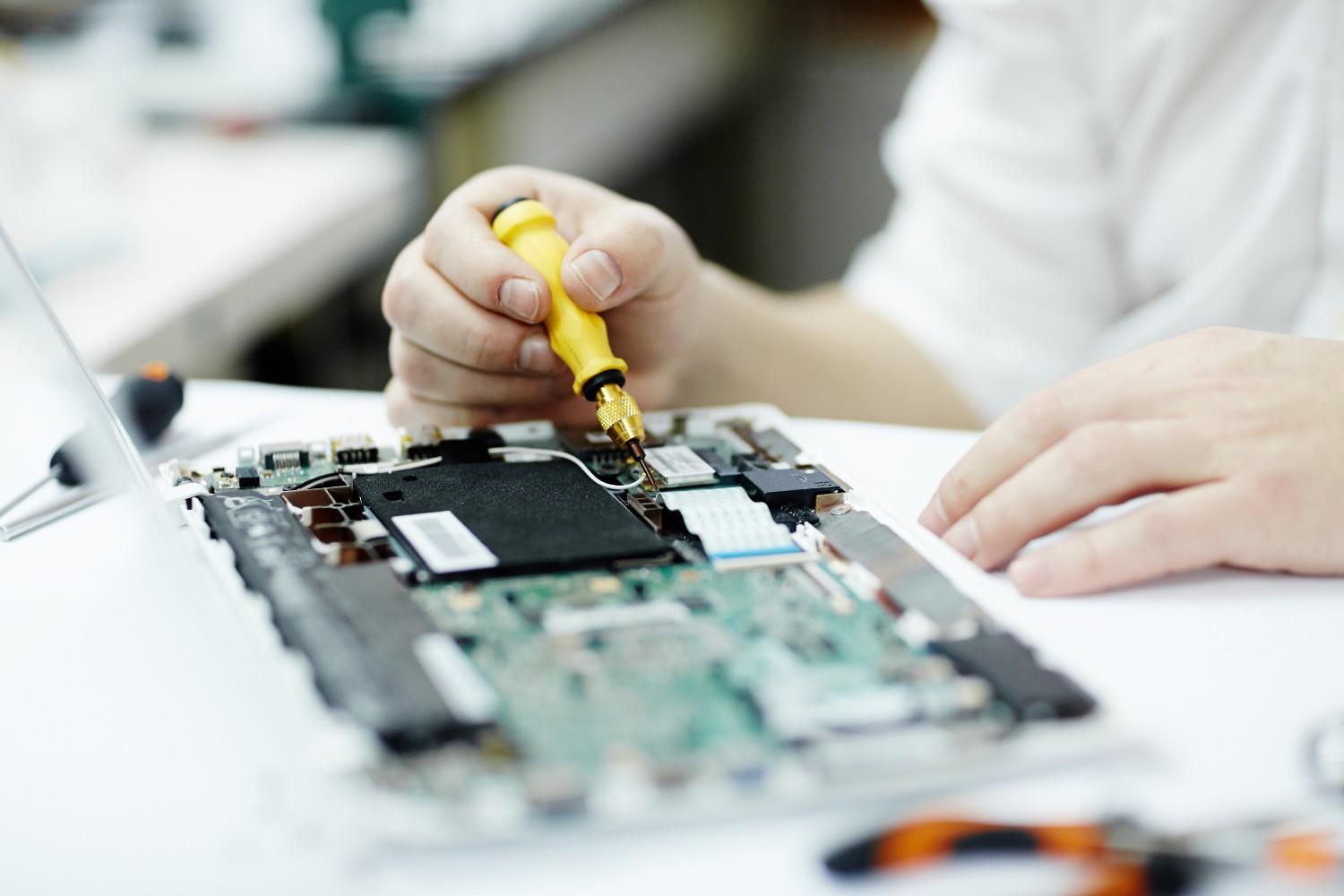
Why Won’t My Laptop Turn On? (Easy Fixes Before You Panic)
Few tech problems feel more stressful than pressing the power button and seeing absolutely nothing happen. No lights. No fan noise. No screen. Just silence.
If you’re asking, “Why won’t my laptop turn on?” don’t panic. In many cases, the issue is minor and fixable at home. Before assuming the worst, work through these practical troubleshooting steps to identify whether the problem is related to power, battery, display, or internal hardware.
This guide walks you through easy fixes before considering professional Laptop Repair Services.
Check the Power Source First
The most common reason a laptop won’t turn on is a power issue.
Make Sure the Charger Is Working
Start with the basics:
Plug your charger into a different wall outlet.
Inspect the charging cable for fraying or damage.
Try a compatible spare charger if available.
Sometimes the adapter fails, not the laptop itself. If your laptop powers on with a different charger, you’ve identified the problem.
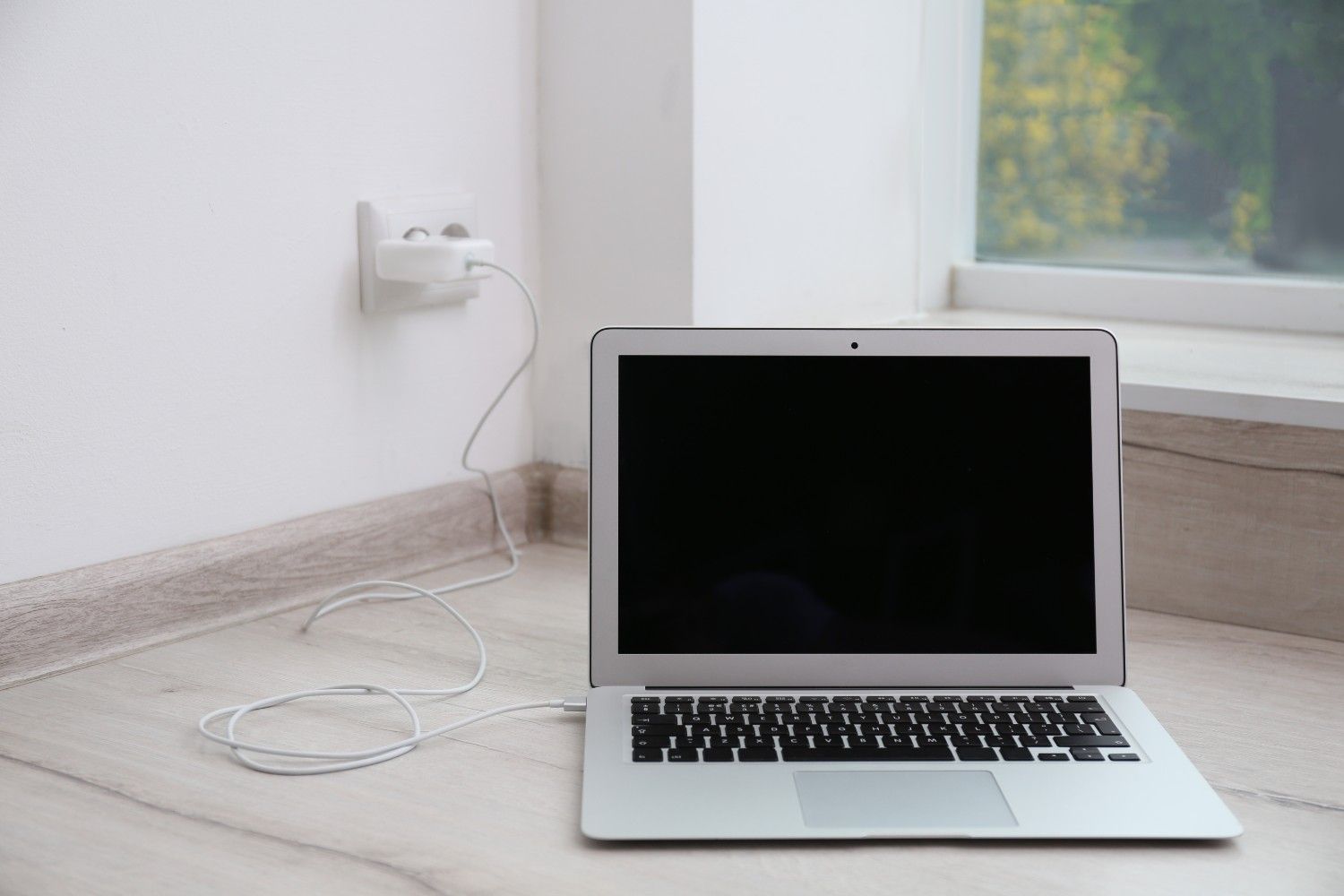
Look for Charging Indicators
Most laptops show a small LED light when plugged in. If there’s no charging light at all, the issue may be:
A faulty power adapter
A damaged charging port
A failed battery
If the charging port feels loose or damaged, professional Computer Repair Services may be required.
Perform a Hard Reset (Power Drain)
If your laptop has power but still won’t start, it may be stuck in a frozen state.
How to Do a Hard Reset
Disconnect the charger.
Remove the battery (if removable).
Hold the power button for 15–30 seconds.
Reinsert the battery and plug the charger back in.
Try powering it on again.
This process drains residual electrical charge and resets internal components. It often resolves startup failures caused by system glitches.

Check If the Screen Is the Real Problem
Sometimes the laptop is actually turning on, but the display is not working.
Signs It’s a Display Issue
You hear the fan running.
Keyboard lights turn on.
You hear startup sounds.
The screen remains black.
Shine a flashlight at the screen. If you see faint images, the backlight may have failed.
Try an External Monitor
Connect your laptop to an external monitor or TV using HDMI. If the display appears externally, the laptop screen likely needs repair.
Remove External Devices
Connected accessories can sometimes interfere with startup.
Disconnect:
USB drives
External hard drives
Printers
Docking stations
SD cards
Then try turning the laptop on again. Faulty peripherals can prevent proper booting.

Listen for Beeping or Flashing Lights
If your laptop makes unusual beeping sounds or blinking patterns when powered on, it may be signaling a hardware error.
Common causes include:
RAM failure
Motherboard issues
Graphics card problems
Different brands use different beep codes. If you hear repeated beeping and no display appears, internal hardware may require inspection.
At this stage, professional Laptop Repair Services are recommended to prevent further damage.
Check the Battery Health
Laptop batteries degrade over time. If your battery is completely dead, the laptop may not turn on without direct power.
Quick Test
Remove the battery (if removable) and try turning the laptop on while plugged in.
If it powers on, the battery likely needs replacement.
Battery replacements are common and usually inexpensive compared to major repairs.
Possible Overheating Shutdown
If your laptop recently shut off during heavy use and won’t power back on, it may have overheated.
Let the device cool down for 30–60 minutes before trying again.
Overheating can be caused by:
Dust buildup
Blocked ventilation
Faulty cooling fans
If overheating persists, internal cleaning through Laptop Repair Services may be necessary.
Signs of a Failing Hard Drive
If the laptop powers on but doesn’t load the operating system, the issue may be a failing hard drive.
Symptoms include:
Stuck on manufacturer logo
Clicking sounds
Error messages like “No Boot Device Found”
If important files are inaccessible, professional Data Recovery Services may be required before replacing the drive.
When to Seek Professional Help
If you’ve tried:
Checking the charger
Performing a hard reset
Testing the screen
Removing peripherals
Inspecting the battery
And your laptop still won’t turn on, it’s time for expert evaluation.
A professional diagnostic can determine whether the issue is related to the battery, charging port, RAM, hard drive, or motherboard. Attempting advanced internal repairs without experience may worsen the problem.
Final Thoughts
When your laptop won’t turn on, it’s easy to assume the worst. However, many startup issues are caused by simple power problems, battery failure, or display issues that can be resolved quickly.
Start with basic troubleshooting. If the issue persists, professional Laptop Repair Services, Computer Repair Services, or Data Recovery Services can help restore your device safely.
Taking the right steps early can save time, money, and important data.
Need device repair? Visit Quick Fix Computers for a free diagnostic.
Need Help?
Our technicians are here to help with any tech issue. Free diagnostics on all repairs.
Schedule a Repair