Windows 10 Support Has Ended: Should You Upgrade, Replace, or Repair Your PC?
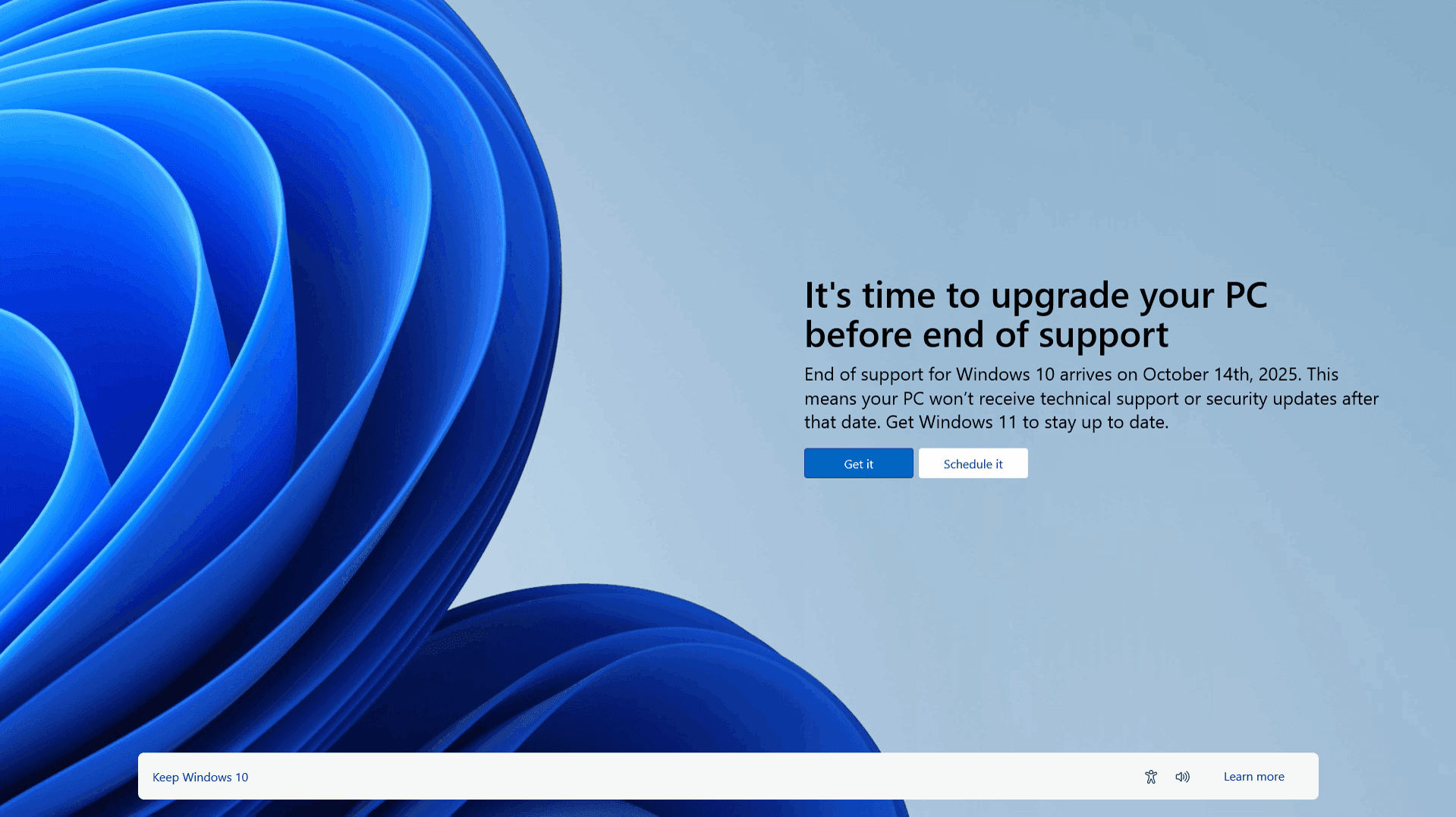
Windows 10 support officially ended on October 14, 2025. Although computers running Windows 10 will continue to work, Microsoft no longer provides regular security updates, feature updates, or technical support for the operating system.
If your PC still runs Windows 10, you may be wondering whether you should upgrade to Windows 11, repair your existing computer, or invest in a replacement. The right decision depends on your computer's hardware compatibility, current condition, performance, and how much you would need to spend to keep it reliable.
For most users, the first step is to check Windows 11 compatibility and assess the condition of their existing PC. A computer that meets the requirements and works reliably may only need an operating system upgrade. A device with hardware problems may benefit from repairs, while an older, unsupported computer with recurring issues may be better replaced.
This guide explains your options, what Windows 10 end of support means, and how to make an informed decision. If you need help evaluating an older computer, Quick Fix Computer Services provides computer diagnostics and repair services in Mountain View, CA.
What Does Windows 10 End of Support Mean?
Windows 10 end of support means Microsoft has stopped providing regular software updates, security fixes, feature updates, and technical assistance for the operating system.
The official end-of-support date was October 14, 2025. This applies to supported Windows 10 editions under the standard lifecycle.
However, the end of support does not mean your computer will suddenly stop working. You can still turn it on, access files, use installed applications, and connect to the internet. The important difference is that the operating system no longer receives the regular security maintenance that helps protect it against newly discovered vulnerabilities.
Does Windows 10 Still Work After Support Ends?
Yes. A Windows 10 computer can continue to operate after October 14, 2025. Your installed applications, documents, and settings do not automatically disappear, and the operating system does not shut down.
However, continuing to use an unsupported operating system creates additional security and compatibility concerns. Over time, newly discovered vulnerabilities may remain unpatched, and some software developers may eventually stop supporting older Windows versions.
For users who depend on their computers for work, online banking, shopping, email, or storing personal information, moving to a supported operating system should be a priority.
Is It Safe to Keep Using Windows 10?
Using Windows 10 without security updates carries increased cybersecurity risks. Cybercriminals can exploit vulnerabilities in outdated software to gain unauthorized access, install malware, or compromise personal and business information.
Installing antivirus software can help detect certain threats, but it does not replace operating-system security updates. A firewall, safe browsing habits, strong passwords, and regular backups are also important, but they cannot fully compensate for an unsupported operating system.
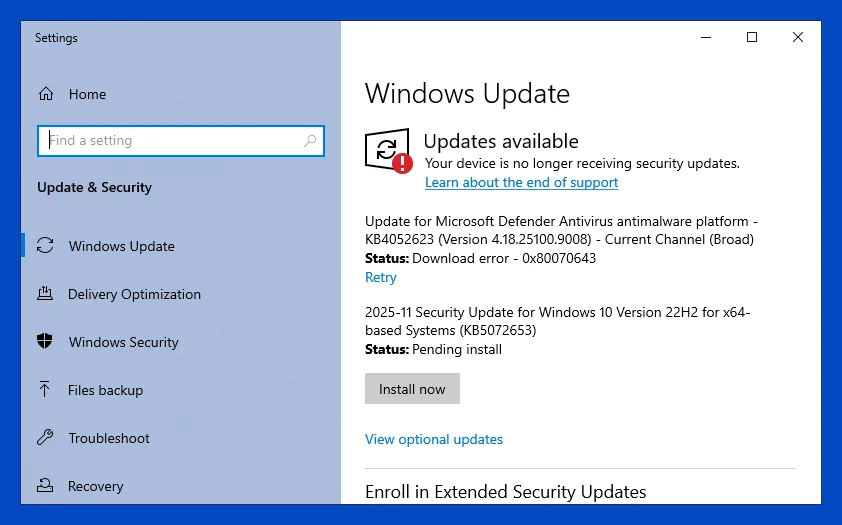
If you need more time before upgrading, Microsoft's Extended Security Updates program may provide a temporary security option for eligible devices.
Can Your Computer Run Windows 11? Check These System Requirements
Before purchasing a new computer, check whether your existing PC meets Microsoft's minimum Windows 11 system requirements.
Windows 11 has specific hardware and security requirements. Some older computers may have sufficient RAM and storage but still fail compatibility checks because of an unsupported processor, missing TPM 2.0, or firmware limitations.
Windows 11 Minimum System Requirements
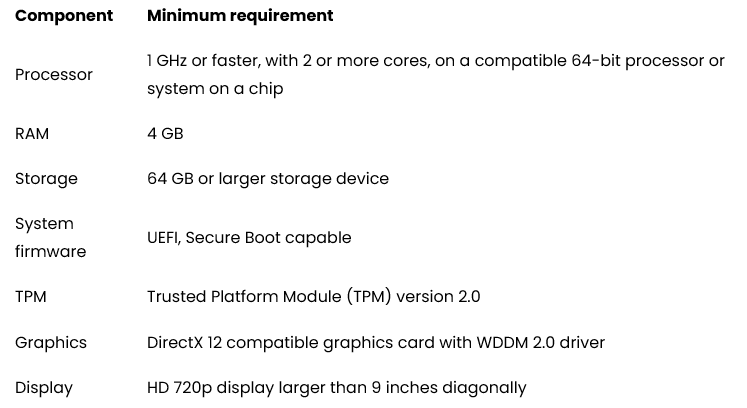
Meeting these minimum requirements does not necessarily mean a computer will deliver strong performance for every application. Actual performance also depends on the processor, available memory, storage health, graphics capabilities, and the software you use.
Microsoft also maintains a list of supported processors. A processor's speed and core count alone do not guarantee Windows 11 compatibility.
How to Check if Your PC Is Compatible With Windows 11
Microsoft provides the PC Health Check app to help determine whether a Windows 10 computer meets Windows 11 requirements.
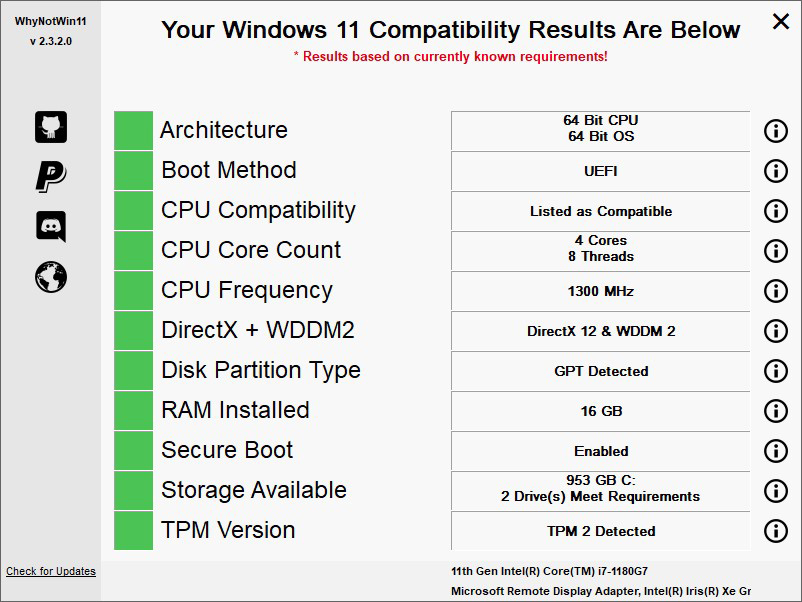
Follow these steps:
Visit Microsoft's official Windows 11 compatibility information.
Download and install the PC Health Check app.
Open the application and locate the Windows 11 eligibility section.
Select the option to check your PC.
Review the compatibility result and any hardware requirements your computer does not meet.
You can also check Windows Update by opening Settings > Update & Security > Windows Update and selecting Check for updates.
If Windows 11 is available for your eligible device, follow Microsoft's upgrade instructions.
If the compatibility check reports that your PC is not eligible, review the specific reason before deciding to replace it. Some requirements may be addressed through supported firmware settings or hardware changes, while others cannot be upgraded.
Should You Upgrade to Windows 11, Repair Your PC, or Replace It?
There is no single solution for every Windows 10 computer. The right choice depends on the device's age, hardware condition, compatibility, repair requirements, and expected remaining lifespan.
Consider these situations before spending money.
Option 1: Upgrade Your Existing PC to Windows 11
Upgrading is generally the most straightforward option when your computer meets Microsoft's system requirements, has healthy hardware, and performs well for your everyday tasks.
If your device is eligible, Microsoft offers the upgrade from Windows 10 to the corresponding edition of Windows 11 at no additional license cost.
Before upgrading:
Check Windows 11 compatibility using PC Health Check.
Make sure sufficient storage space is available.
Back up important files and documents.
Check whether your essential applications and peripherals support Windows 11.
Install available Windows 10 updates before starting the upgrade.
Confirm that your device manufacturer provides the necessary drivers.
An upgrade may preserve your existing files and applications, but you should still create a verified backup. Unexpected interruptions, storage problems, or software incompatibilities can complicate the process.
Best for: Computers that meet Windows 11 requirements, have no major hardware problems, and still provide adequate performance.
Option 2: Repair Your PC Before Upgrading
Windows 10 end of support and computer hardware failure are two separate issues.
A computer may be compatible with Windows 11 but run slowly because of a failing hard drive, insufficient memory, overheating, or other hardware problems. In such cases, repairing the underlying issue may make the computer more useful before or after upgrading.
Depending on the computer model, possible repairs and improvements include:
Replacing a failing hard drive.
Upgrading from a traditional hard drive (HDD) to a solid-state drive (SSD).
Increasing RAM where supported.
Cleaning and servicing cooling components.
Replacing a faulty battery or power supply.
Diagnosing motherboard, storage, or other hardware issues.
However, hardware upgrades cannot solve every Windows 11 compatibility problem. For example, adding RAM or installing an SSD will not make an unsupported processor officially compatible with Windows 11.
Before investing in upgrades, evaluate the computer's overall condition and confirm that the proposed repair is worthwhile.
Best for: Computers with one or two repairable hardware problems that are otherwise compatible with Windows 11 and suitable for continued use.
Not sure whether your computer is worth repairing?
Quick Fix Computer Services offers free diagnostics to help identify hardware problems and explain available repair options.
Visit our Mountain View computer repair location to learn more.
Option 3: Replace Your Computer With a Windows 11 PC
Replacing your computer may be the better long-term decision if it does not meet Windows 11 requirements, has multiple hardware problems, or struggles to handle the applications you need.
For example, an older laptop with a failing storage drive, poor battery health, overheating issues, and an unsupported processor may require several repairs without providing a reliable long-term solution.
When comparing replacement costs, consider more than the price of a new device.
Account for:
Data transfer and backup.
Software licenses and subscriptions.
Email and account configuration.
Printer and peripheral compatibility.
Additional memory or storage requirements.
Secure disposal or recycling of the old computer.
Before retiring your existing PC, make sure important files have been transferred and verified. If the computer contains sensitive information, erase its storage using an appropriate method before disposal or recycling.
Best for: Computers with unsupported hardware, recurring failures, poor overall performance, or repair costs that are difficult to justify.
Option 4: Use Windows 10 Extended Security Updates Temporarily
If your computer cannot upgrade to Windows 11 and you are not ready to replace it, Microsoft's Extended Security Updates (ESU) program may provide additional time.
ESU is designed to help eligible Windows 10 users transition to a supported device while continuing to receive important security updates.
For eligible consumer devices enrolled in the program, Microsoft provides critical and important security updates through October 12, 2027.
However, ESU is not a full extension of regular Windows 10 support.
It does not include:
New operating system features.
General non-security fixes.
Product enhancements.
Regular technical support for Windows 10.
Eligible consumer devices generally need to run Windows 10 version 22H2. Microsoft provides consumer enrollment options that may include syncing PC settings, redeeming Microsoft Rewards points, or purchasing enrollment for a one-time fee. Availability and terms should be checked directly with Microsoft.
Businesses should not assume that consumer ESU enrollment applies to organization-managed devices. Commercial ESU licensing and terms are separate.
Best for: Users who need a temporary transition period before upgrading or replacing their computers.
ESU should be treated as a temporary security bridge, not a permanent replacement for a supported operating system.
Can You Upgrade an Older PC to Make It Compatible With Windows 11?
Some older computers can benefit from hardware upgrades, but not every Windows 11 compatibility issue can be fixed by replacing components.
The important step is to identify exactly why the computer failed the compatibility check.
Can Adding RAM Make an Old PC Compatible?
Possibly. Windows 11 requires at least 4 GB of RAM, and some older computers may have less than this.
If the computer supports additional memory, upgrading RAM may help meet the minimum requirement and improve multitasking performance.
However, additional memory will not resolve an unsupported processor, missing TPM 2.0, or incompatible firmware.
Can an SSD Upgrade Improve an Older Computer?
Replacing a traditional hard drive with an SSD can significantly improve everyday responsiveness, including startup times, application loading, and file access.
An SSD upgrade can be a worthwhile performance improvement for a compatible computer with a healthy processor and sufficient memory.
However, an SSD does not automatically make an unsupported computer eligible for Windows 11.
Can You Upgrade the Processor or Enable TPM 2.0?
Processor and motherboard compatibility can be more complicated.
Windows 11 requires a supported processor, TPM 2.0, and UEFI firmware with Secure Boot capability. Some computers have TPM functionality that can be enabled through firmware settings, while others may not have the required hardware.
Processor replacement may also be impractical because of motherboard compatibility, laptop design, and cost.
Before purchasing components, check your computer manufacturer's documentation or have the device evaluated by a qualified technician.
Avoid unofficial installation methods that bypass Windows 11 system requirements. Unsupported installations may create compatibility, reliability, and update limitations.
What Should You Do Before Upgrading or Replacing Your Computer?
Whether you plan to upgrade Windows, repair your PC, or purchase a new device, prepare your computer first. A little planning can help prevent data loss and unnecessary expenses.
1. Back Up Important Files
Save important documents, photos, work files, and other personal data to an external drive or trusted cloud backup service.
Verify that your backup is complete and that important files can be accessed before starting an operating system upgrade or replacing hardware.
2. Check Software and Peripheral Compatibility
Some older printers, scanners, applications, and specialized business tools may require updated drivers or software versions.
Confirm compatibility before moving to Windows 11, especially if you depend on specific programs for work or school.
3. Review Your Computer's Hardware Health
Check storage health, memory, battery condition, cooling performance, and other components.
If your PC has recurring crashes, overheating, unusual noises, or startup problems, investigate these issues before attempting a major upgrade.
4. Protect Your Accounts and Personal Information
Make sure you know your Microsoft account credentials and have access to important email accounts, recovery methods, and software license information.
Use strong, unique passwords and enable multi-factor authentication where available.
5. Plan Your Data Transfer
If you are replacing your computer, decide how you will transfer files, browser data, applications, and settings.
Do not erase or dispose of your old computer until you have confirmed that your new device contains the files and information you need.
Windows 10 Upgrade and Computer Repair in Mountain View, CA
If you are still using Windows 10 and are unsure whether your computer can be upgraded, repaired, or should be replaced, a professional hardware assessment can help you make a more informed decision.
Quick Fix Computer Services provides computer and laptop repair services in Mountain View, California. Whether your device is running slowly, experiencing hardware problems, or needs troubleshooting, a diagnostic evaluation can help identify the issue and determine what repair options may be available.
Quick Fix Computer Services can assist with:
Laptop and desktop computer diagnostics.
Hardware troubleshooting and repair.
SSD and other supported hardware upgrades.
Computer performance issues.
Virus and malware removal.
Mac and Windows computer repair.
Before investing in a replacement, it is worth understanding the condition of your existing computer and whether a repair makes practical sense.
Visit Quick Fix Computer Services in Mountain View:
1398 W El Camino Real E, Suite E
Mountain View, CA 94040
Phone: (650) 968-2400
Quick Fix offers free diagnostics, same-day service for many repairs when available, and a 90-day repair warranty.
Need help evaluating your computer? Contact Quick Fix Computer Services or schedule a repair.
Frequently Asked Questions About Windows 10 End of Support
Is Windows 10 still supported in 2026?
No. Standard Windows 10 support ended on October 14, 2025. Microsoft no longer provides regular security updates, feature updates, or technical assistance. Eligible devices enrolled in the Extended Security Updates program can receive important security updates temporarily.
Will my computer stop working because Windows 10 support ended?
No. Your Windows 10 computer will continue to operate. You can still access your files, use installed applications, and connect to the internet. However, without regular security updates, the operating system becomes more exposed to newly discovered vulnerabilities.
Is it safe to keep using Windows 10 without security updates?
Continuing to use Windows 10 without security updates increases cybersecurity risks. Antivirus software and safe browsing habits can help reduce exposure, but they do not replace operating-system security patches. Moving to a supported Windows version is the recommended long-term solution.
Can I upgrade from Windows 10 to Windows 11 for free?
Yes, eligible Windows 10 computers can upgrade to the corresponding edition of Windows 11 at no additional license cost. Your device must meet Microsoft's minimum system requirements, and the upgrade should be offered through Windows Update or Microsoft's supported installation methods.
How do I know if my PC is compatible with Windows 11?
Download Microsoft's PC Health Check app and run the Windows 11 compatibility assessment. It checks important requirements, including processor compatibility, TPM 2.0, memory, storage, and Secure Boot capability.
Can I install Windows 11 on an unsupported PC?
Unofficial methods exist to bypass some Windows 11 hardware checks, but Microsoft does not recommend installing Windows 11 on devices that do not meet its minimum requirements. Unsupported computers may experience compatibility problems and are not guaranteed to receive updates.
Can I upgrade my old computer instead of buying a new one?
Sometimes. Adding RAM or replacing an older hard drive with an SSD may improve performance and help meet certain hardware requirements. However, these upgrades cannot make every unsupported processor or motherboard compatible with Windows 11. Check the computer's complete specifications first.
How long will Windows 10 Extended Security Updates last?
Microsoft's consumer ESU program provides eligible enrolled Windows 10 devices with critical and important security updates through October 12, 2027. It does not include new features, general non-security fixes, or full technical support.
Is it worth repairing a five-year-old laptop?
It depends on the laptop's hardware condition, Windows 11 compatibility, repair requirements, and replacement cost. A five-year-old laptop with one repairable issue may still be worth keeping, while a device with multiple failing components may be better replaced.
Where can I get computer repair in Mountain View, CA?
Quick Fix Computer Services provides computer and laptop repair services at 1398 W El Camino Real E, Suite E, Mountain View, CA 94040. Call (650) 968-2400 or visit the website to learn about diagnostics and repair options.
Final Thoughts: Upgrade, Repair, or Replace Your Windows 10 PC?
Windows 10 end of support does not mean you need to replace your computer immediately. Start by checking whether your PC meets Windows 11 requirements, then evaluate its hardware condition and performance.
If the computer is compatible and reliable, upgrading may be the simplest solution. If it has repairable hardware issues, a professional diagnostic can help determine whether fixing it is worthwhile. If it is outdated, unsupported, or repeatedly failing, replacing it may offer better long-term value.
If you need help deciding what to do with your Windows 10 computer, Quick Fix Computer Services in Mountain View, CA, can help you evaluate your repair options. Contact the team or visit the shop for a free diagnostic.
Need Help?
Our technicians are here to help with any tech issue. Free diagnostics on all repairs.
Schedule a Repair